
Generate an Open Graph Profile Image with C#
For the last few months, I’ve been working on a open-source project called MoreSpeakers. It’s a platform that helps connect new speaker with experienced speakers to help them improve their public speaking skills. One of the features I wanted to implement was dynamic Open Graph profile images for each speaker. In this post, I’ll walk you through how I used C# to generate these images.
What is Open Graph?
The Open Graph protocol enables any web page to become a rich object in a social graph. For instance, this is used on Facebook to allow any web page to have the same functionality as any other object on Facebook. By using Open Graph tags, you can control how your web pages are represented when shared on social media platforms, like Facebook, BlueSky, LinkedIn, etc.
To turn a web page into a rich object, you need to add specific Open Graph meta tags to the HTML of your page. These tags provide information about the page, such as its title (og:title), type (og:type), image (og:image), and description (og:description). The most relevant tag for this post is the og:image tag, which specifies the image that will be displayed when the page is shared.
I won’t go into detail about how to add Open Graph tags to your web pages, but if you’re interested, you can check out the Open Graph protocol specification for more information.
Generating Open Graph Images with C#
To generate images in C#, I used the SixLabors ImageSharp library. ImageSharp is a powerful and flexible library for image processing in .NET. It supports a wide range of image formats and provides a rich set of features for manipulating images. I also needed to use the SixLabors Fonts to generate the text for the images.
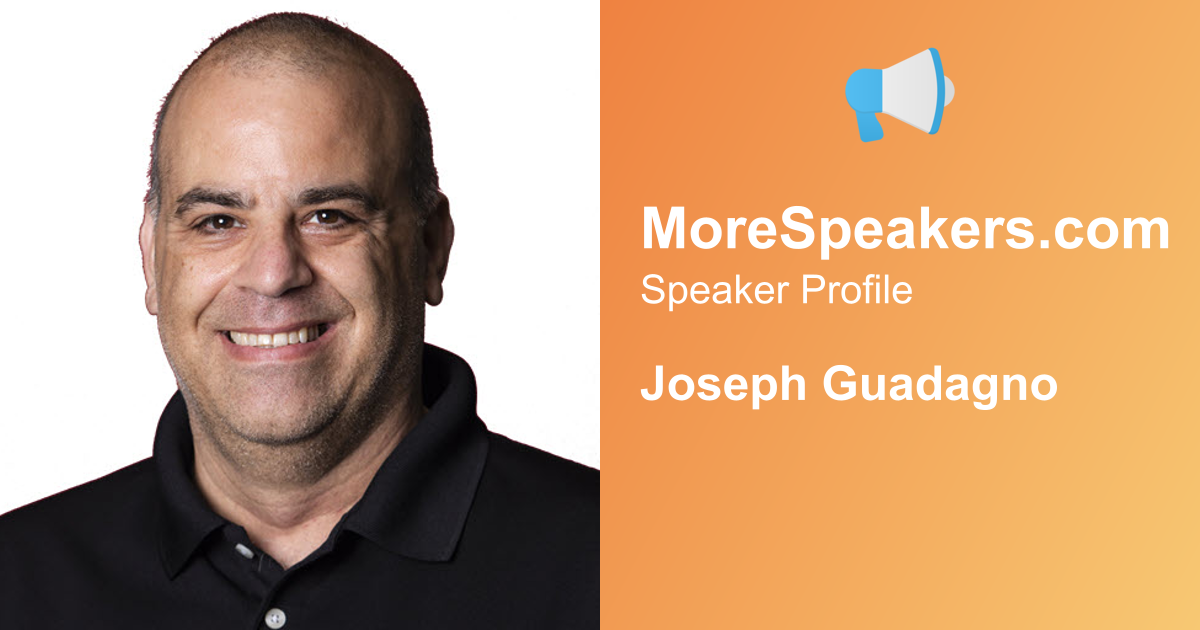
For an Open Graph profile image to look correct on social media platforms, it needs to be 1200 pixels wide by 630 pixels tall. This aspect ratio ensures that the image displays properly across various platforms without being cropped or distorted. Let’s take a look at a sample image generated for a MoreSpeakers profile:
Breaking Down the Image
As you can see from the sample image above, there are several key components that make up the Open Graph profile image:
- Speaker Image: This takes up the left side of the image and is half the width of the image (600 pixels wide by 630 pixels tall).
- Background: The right side of the image has a gradient background that matches the MoreSpeakers branding. The gradient goes from orange-red (
#E95420) to a warm yellow (#F7C873). - The MoreSpeakers Logo: The MoreSpeakers logo is placed at the top center of the image.
- The Text
- “MoreSpeakers.com”: Below the logo, the text “MoreSpeakers.com” is displayed in a bold font.
- “Speaker Profile”: Below “MoreSpeakers.com”, the text “Speaker Profile” is displayed in a regular font.
- Speaker Name: Below “Speaker Profile”, the speaker’s name is displayed in a large, bold font.
Now, the code to generate this is broken out similarly to the breakdown above. Let’s go through each part of the code.
The Images
First we start with creating a canvas to draw on:
1
using var image = new Image<Rgba32>(1200, 630);
The Gradient Background
Next, we need to create a LinearGradientBrush to create the gradient background:
1
2
3
4
5
6
7
8
9
var gradientBrush = new LinearGradientBrush(
    new PointF(0, 0),
    new PointF(1200, 630),
    GradientRepetitionMode.None,
    new[]
    {
        new ColorStop(0f, Color.ParseHex("#E95420")), // orange-red
        new ColorStop(1f, Color.ParseHex("#F7C873")) // warm yellow
    });
Now we can fill the image with the gradient:
1
canvas.Mutate(ctx => ctx.Fill(gradientBrush));
The Speaker Image
Since the speaker image can come in various sizes and aspect ratios, we need to resize and crop it to fit perfectly into the left half of the Open Graph image. Here’s how we can do that:
1
2
3
4
5
speakerImage.Mutate(x => x.Resize(new ResizeOptions
{
    Size = new Size(1200 / 2, 630),
    Mode = ResizeMode.Crop
}));
NOTE: The speakerImage variable represents a SixLabors.ImageSharp.Image object that contains the speaker’s image. This image could be loaded from a file, URL, or stream.
Mutate is the method used to change the image, and ResizeOptions allows us to specify the size and mode. We set the size to half the width of the Open Graph image (600 pixels) and the full height (630 pixels). The ResizeMode.Crop option ensures that the image fills the entire area without distortion, cropping any excess parts as necessary.
Now we can draw the speaker image onto the left side of the canvas:
1
canvas.Mutate(ctx => ctx.DrawImage(speakerImage, new Point(0, 0), 1f));
The MoreSpeakers Logo
Next, we need to load the MoreSpeakers logo and draw it onto the canvas. Assuming we have the logo image loaded into a variable called logoImage, we can position it at the top center of the right half of the Open Graph image:
1
2
3
4
5
6
var logoWidth = 110;
var logoHeight = 110;
logoImage.Mutate(x => x.Resize(logoWidth, logoHeight));

// Paste the logo in the center of the width of the gradient background
canvas.Mutate(ctx => ctx.DrawImage(logoImage, new Point((width / 2 / 2 - logoWidth / 2) + width / 2, 40), 1f));
That’s the images taken care of. Now let’s move on to the text.
The Text
This is where we use the SixLabors Fonts library to load fonts and draw text onto the image. You work with a font via a FontFamily. You can load a font front from the system or from a file. Assuming the font you want to use is installed on the system, you can load it like this:
1
2
3
var fontCollection = new FontCollection();
fontCollection.AddSystemFonts();
var fontFamily = fontCollection.Get("Open Sans");
Now that we have the font family, we can create different Font instances for each text element with varying sizes and styles:
1
2
3
var brandFont = fontFamily.CreateFont(58, FontStyle.Bold);
var labelFont = fontFamily.CreateFont(40, FontStyle.Regular);
var nameFont = fontFamily.CreateFont(48, FontStyle.Bold);
Here, we create three fonts: one for the brand text (“MoreSpeakers.com”), one for the label text (“Speaker Profile”), and one for the speaker’s name.
Now you can draw the text onto the canvas. For each text element, you need to specify the position where it should be drawn. I created a couple of variables to help with positioning:
1
2
3
4
float textLeft = (float)1200 / 2 + 40;
float brandTop = 200;
float labelTop = brandTop + 70;
float nameTop = labelTop + 90;
Now let’s draw each text element:
1
2
3
4
5
6
7
8
9
10
11
12
13
14
15
16
17
18
19
20
21
22
23
24
canvas.Mutate(ctx =>
{
    // MoreSpeakers
    ctx.DrawText(new RichTextOptions(brandFont)
    {
        Origin = new PointF(textLeft, brandTop),
        HorizontalAlignment = HorizontalAlignment.Left
    }, "MoreSpeakers.com", Color.White);

    // Speaker Profile
    ctx.DrawText(new RichTextOptions(labelFont)
    {
        Origin = new PointF(textLeft, labelTop),
        HorizontalAlignment = HorizontalAlignment.Left
    }, "Speaker Profile", Color.White);

    // Speaker Name (dynamic)
    ctx.DrawText(new RichTextOptions(nameFont)
    {
        Origin = new PointF(textLeft, nameTop),
        HorizontalAlignment = HorizontalAlignment.Left,
        WrappingLength = (float) width / 2 - 80
    }, speakerName, Color.White);
});
On the canvas, we use the DrawText method to draw each text element. We specify the font, position, and color for each text. The RichTextOptions allows us to set additional options like horizontal alignment and wrapping length. There are more options available in the ImageSharp Fonts documentation.
The final step: Saving the Image
After drawing all the images and text onto the canvas, the final step is to save the generated Open Graph profile image to a file. You can do this using the Save method provided by ImageSharp. Here’s how you can save the image as a PNG file:
1
canvas.Save("og-profile-image.png");
There are several other image formats you can save to, such as JPEG, BMP, and GIF. You can specify the format by using the appropriate encoder when saving the image. Look at the ImageSharp Formats Extensions source code for more details on saving images in different formats.
The Sample Project
I built a sample solution with C#10 called OpenGraphProfileImageGenerator, which is available at this GitHub repository. The solution has 3 projects in it:
- OpenGraphProfileImageGenerator.Manager: Contains the core logic for generating the Open Graph profile image.
- OpenGraphProfileImageGenerator.Manager: Contains unit tests for the Manager project.
- OpenGraphProfileImageGenerator.ConsoleApp: This is the main project that contains the code to generate the Open Graph profile image.
The console app will allow you to generate the sample image shown above. The Manager project has a lot of helper methods to make it easier to generate the image. You can clone the repository and run the console app to see how it works.
If you want to modify image or play around with it, all of the generation code that I walked through above is in the OpenGraphImageGenerator class in the Manager project. Look for the GenerateSpeakerProfile method with the following signature:
1
2
3
public Image GenerateSpeakerProfile(Image speakerImage, Image logoImage, string speakerName,
    FontFamily fontFamily,
    int width = DefaultOpenGraphWidth, int height = DefaultOpenGraphHeight)
Wrap Up
In this post, I walked you through how I used C# and the SixLabors ImageSharp library to generate dynamic Open Graph profile images for the MoreSpeakers platform. By leveraging the power of C# and ImageSharp, I was able to create visually appealing images that enhance the sharing experience on social media platforms.
References
- OpenGraphProfileImageGenerator repository
- Open Graph protocol specification
- SixLabors ImageSharp documentation
- MoreSpeakers website
- MoreSpeakers GitHub repository
Share on
Bluesky Facebook LinkedIn Reddit XLike what you read?
Please consider sponsoring this blog.